Slack app
Govern your AI agents from Slack.
High-risk alerts and dual-control Approve or Deny on held tool calls, a live App Home dashboard, and the /axiorank command. Install in one click, with least-privilege scopes and a tamper-evident audit trail.
incoming-webhook + commands · dual-control approvals · decision in under 100ms
DROP TABLE users;What you get
The two moments that need a human, brought into Slack.
AxioRank scores every tool call, enforces policy, and keeps a provable audit trail. The Slack app surfaces what a person actually has to act on, and lets them act without leaving the channel.
High-risk alerts
When an agent does something risky, the alert lands in the channel you choose, with the agent, tool, risk score, and decision.
Approve or deny, in Slack
Held tool calls arrive with Approve and Deny buttons. Two-person holds need two distinct Slack users, the same dual-control path as the dashboard.
App Home dashboard
Open AxioRank in your sidebar for a live view: pending approvals with inline buttons, the last 24 hours of allow, deny, and hold, and the agents holding the most.
The /axiorank command
A private summary on demand, plus approvals, agents, status, spend, and help subcommands, answered only to you.
Global shortcut
Open the pending approvals list from anywhere with the AxioRank shortcut, no need to switch channels.
Provable trail
Every decision is written to a tamper-evident audit log you can verify offline, so an approval in Slack is real evidence, not a screenshot.
See it in Slack
Alerts, an App Home dashboard, and a command.
The same governance you run from the dashboard, shown where your team already works.
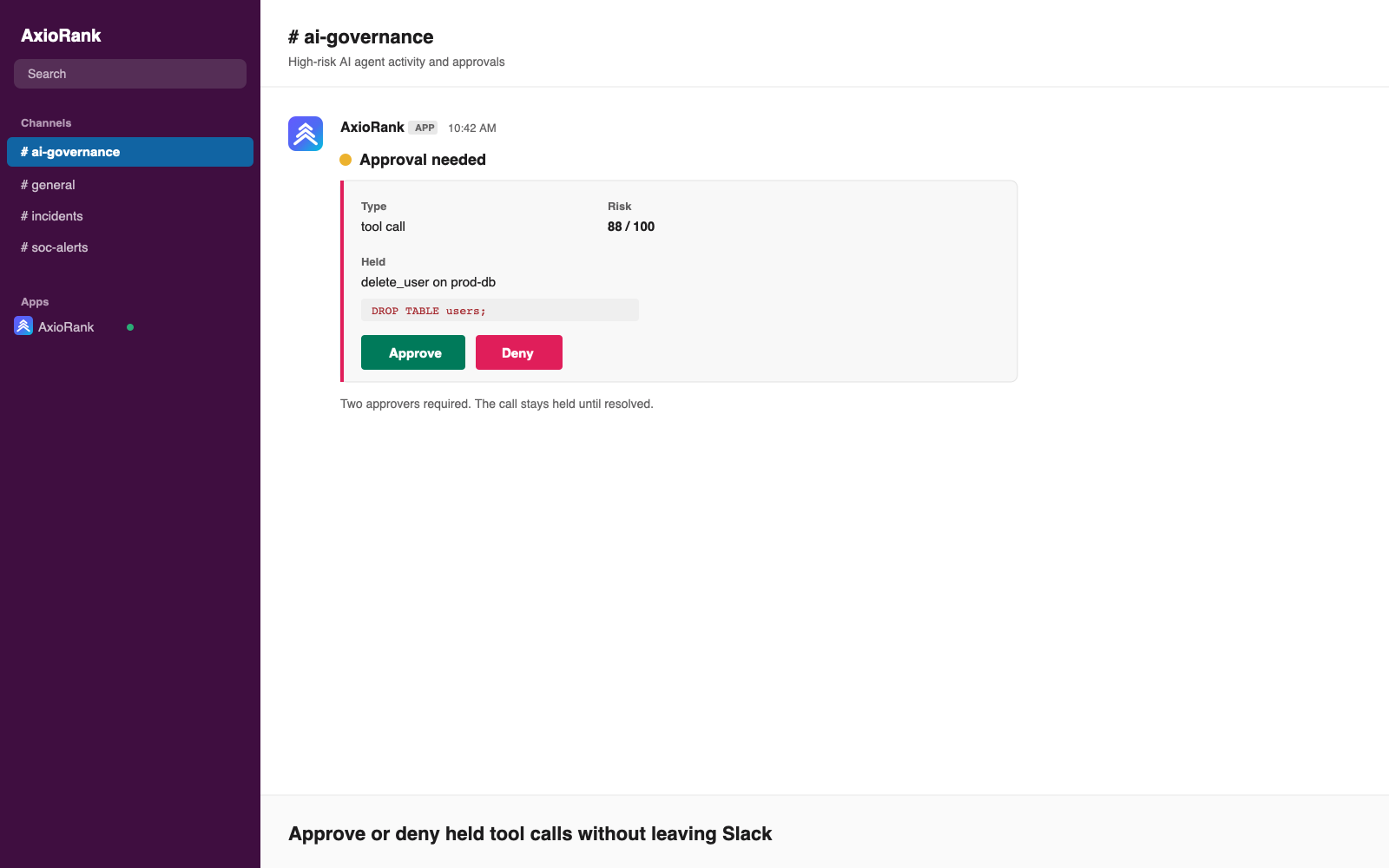
Approve or deny held tool calls without leaving Slack.
Setup
Live in about a minute.
Authorization is a Slack OAuth flow, so there is no token to copy and nothing to wire up by hand.
1. Add to Slack
One click installs the app and asks you to pick a channel. Authorization happens through Slack OAuth, with no token to paste.
2. Pick a channel
Slack returns a webhook bound to that channel. AxioRank creates the notification channel for you and starts routing high-risk alerts and approvals there.
3. Approve in Slack
Held calls show up with Approve and Deny. Resolve them in Slack or the dashboard; either way the decision is recorded once and audited.
Trust
Least privilege by design.
A security control should not be the thing that widens your attack surface. The app requests only what each feature needs, reads no messages, and stores its token encrypted.
| Scope | Why it is requested |
|---|---|
| incoming-webhook | Post alerts and approval prompts to the single channel the installer chooses. Nothing else in the workspace. |
| commands | Run the /axiorank command, answered in the immediate signed response. |
| chat:write | Publish the App Home tab and open the approvals modal. The app only writes its own Home view and modals. |
No message reading
No history or user scopes. The app never sees channel content.
Encrypted token
The bot token is encrypted at rest and used only to render the Home tab and modals.
Verified clicks
Every button click and command is checked against the Slack signing secret before it acts.
Commands
Every /axiorank command.
Run the bare command for a summary, or drill in. Replies are private to you.
| /axiorank | What needs attention right now: pending approvals and the last 24 hours of decisions. |
| /axiorank approvals | The full pending approval list, longest-waiting first. |
| /axiorank agents | The agents holding the most approvals. |
| /axiorank status | Governed volume and the allow, deny, and hold split. |
| /axiorank spend | Month-to-date AI spend and the trailing window. |
| /axiorank help | The full command list. |
Questions
Good to know before you install.
The security questions an admin asks first.
Does AxioRank read our Slack messages?+
No. The app requests three least-privilege scopes: incoming-webhook to post to one channel, commands for the slash command, and chat:write to render its own App Home tab and modals. It does not request any message-history or user scopes, and it never reads channel content.
How does dual control work in Slack?+
Approve and Deny clicks run through the same approval engine as the dashboard and signed email links. When a policy requires two approvers, a hold needs two distinct Slack users to clear it. The button click is verified with the app signing secret before any vote is recorded.
What gets stored when we install?+
The incoming-webhook URL for the channel you pick, and the bot token used to render the App Home tab. The bot token is encrypted at rest. No workspace credentials are hard-coded in the app; every workspace authorizes its own install through OAuth.
Do we need the App Home tab?+
It is optional. Alerts, approvals, and the /axiorank command work on their own. The Home tab adds a live dashboard and needs an encryption key on the deployment so the bot token can be stored; without it, everything else still works and the Home tab stays empty.
Can we install without the OAuth app?+
Yes. If you run your own AxioRank deployment, you can paste an incoming-webhook URL into Channels by hand. Alerts and approvals work, and the interactive buttons work as long as the signing secret is set. The one-click Add to Slack flow simply automates that.
Which plans include the Slack app?+
Slack notifications and in-Slack approvals are available on every plan. Higher tiers add more governance surface, longer audit retention, and the AI assessment models. See pricing for the full breakdown.
Bring AI agent governance into Slack
Install AxioRank in one click, pick a channel, and start approving held tool calls where your team already works.
Keep exploring